Worktualize

Worktualize and Zoho Projects Integration Guidelines

Prerequisites

  1. Create a Worktualize Organization Account here.

  2. Set up a Zoho Account with administrative access to use the Zoho Projects module.

  3. Follow the steps below to create a Zoho API Client, enabling seamless integration between Worktualize and Zoho Projects.

Step 1: Create a Zoho Client (OAuth Setup) 

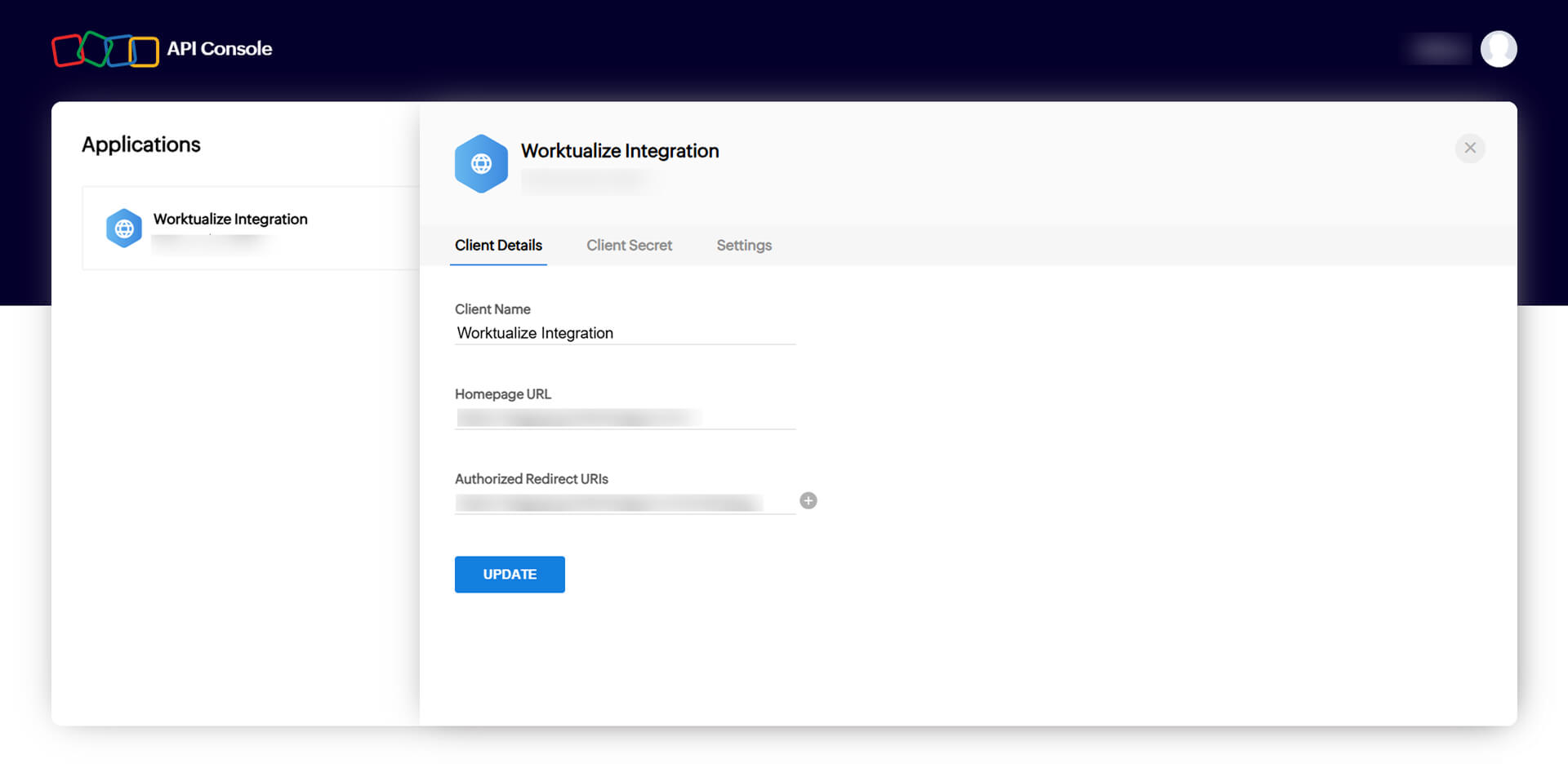
  1. Go to https://api-console.zoho.com 

  2. Click “Add Client” 

  3. Choose “Server-based Application” 

  4. Fill in the following: 

  1. Click Create 

    Zoho API Screenshot 1

    1. Save the Client ID and Client Secret shown after creation. You’ll use these to authenticate Worktualize system. 

    1. Login as Organization Admin in Worktualize. 

    2. Navigate to: 
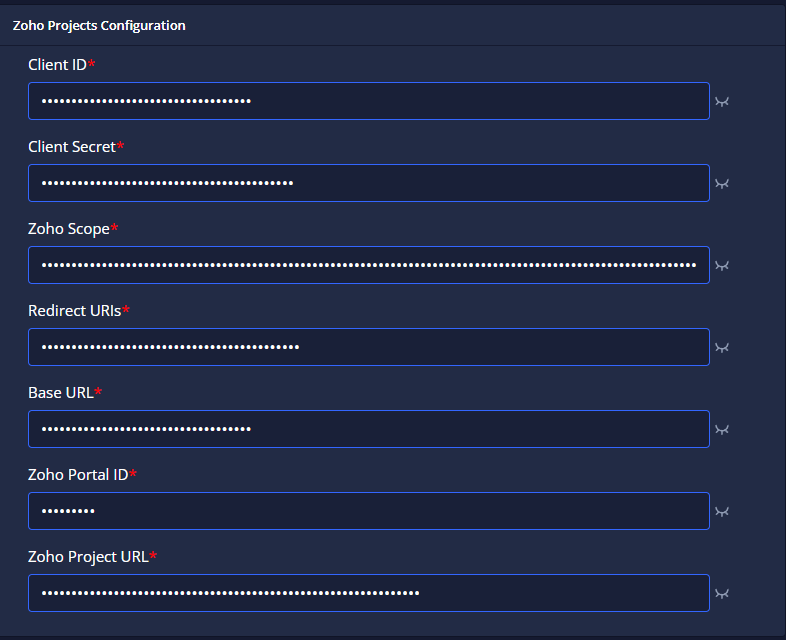
      Organization Settings > Zoho Project Configuration 
    1. Enter the following details: 

    • Client ID & Client Secret: Copy from Step 1. 

    • Zoho Scope: ZohoProjects.portals.READ,ZohoProjects.portals.CREATE,ZohoProjects.portals.UPDATE,ZohoProjects.projects.READ,ZohoProjects.projects.CREATE,ZohoProjects.projects.UPDATE,ZohoProjects.tasks.READ,ZohoProjects.tasks.CREATE,ZohoProjects.tasks.UPDATE,ZohoProjects.users.READ,ZohoProjects.users.CREATE,ZohoProjects.users.UPDATE,ZohoProjects.timesheets.READ,ZohoProjects.timesheets.CREATE,ZohoProjects.timesheets.UPDATE,ZohoProjects.search.READ,ZohoProjects.bugs.CREATE,ZohoProjects.bugs.READ,ZohoProjects.bugs.UPDATE,ZohoProjects.tasks.READ,ZohoPC.files.READ,ZohoPC.files.CREATE,ZohoPC.files.UPDATE,ZohoProjects.portals.CREATE,WorkDrive.workspace.READ,WorkDrive.workspace.CREATE,WorkDrive.workspace.UPDATE,WorkDrive.files.READ,WorkDrive.files.CREATE,WorkDrive.files.UPDATE

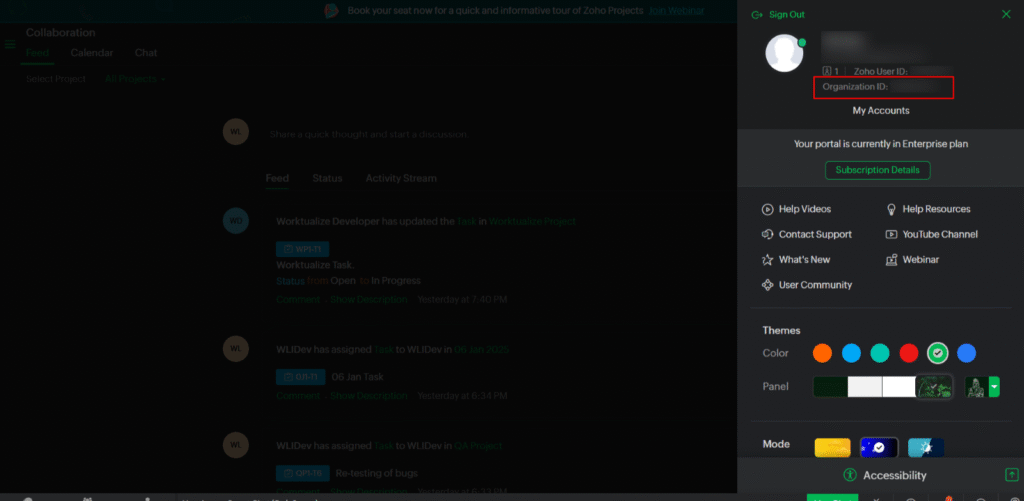
    • Zoho Portal ID: Obtain this from your Zoho Projects account. 
    • For Organization Admins: Log back into the Worktualize Admin Panel with your credentials after completing Step 2. 

    • For Regular Users: Log into the Admin Panel with valid credentials. 

    Final Authorization Steps 

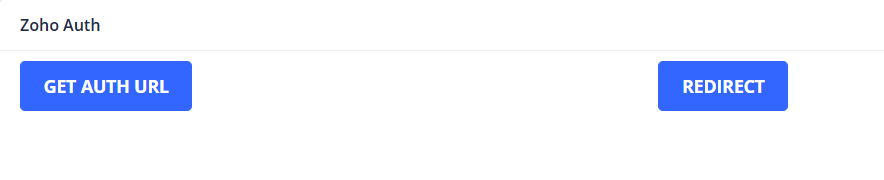
    1. Click the “Get Auth URL” button. 

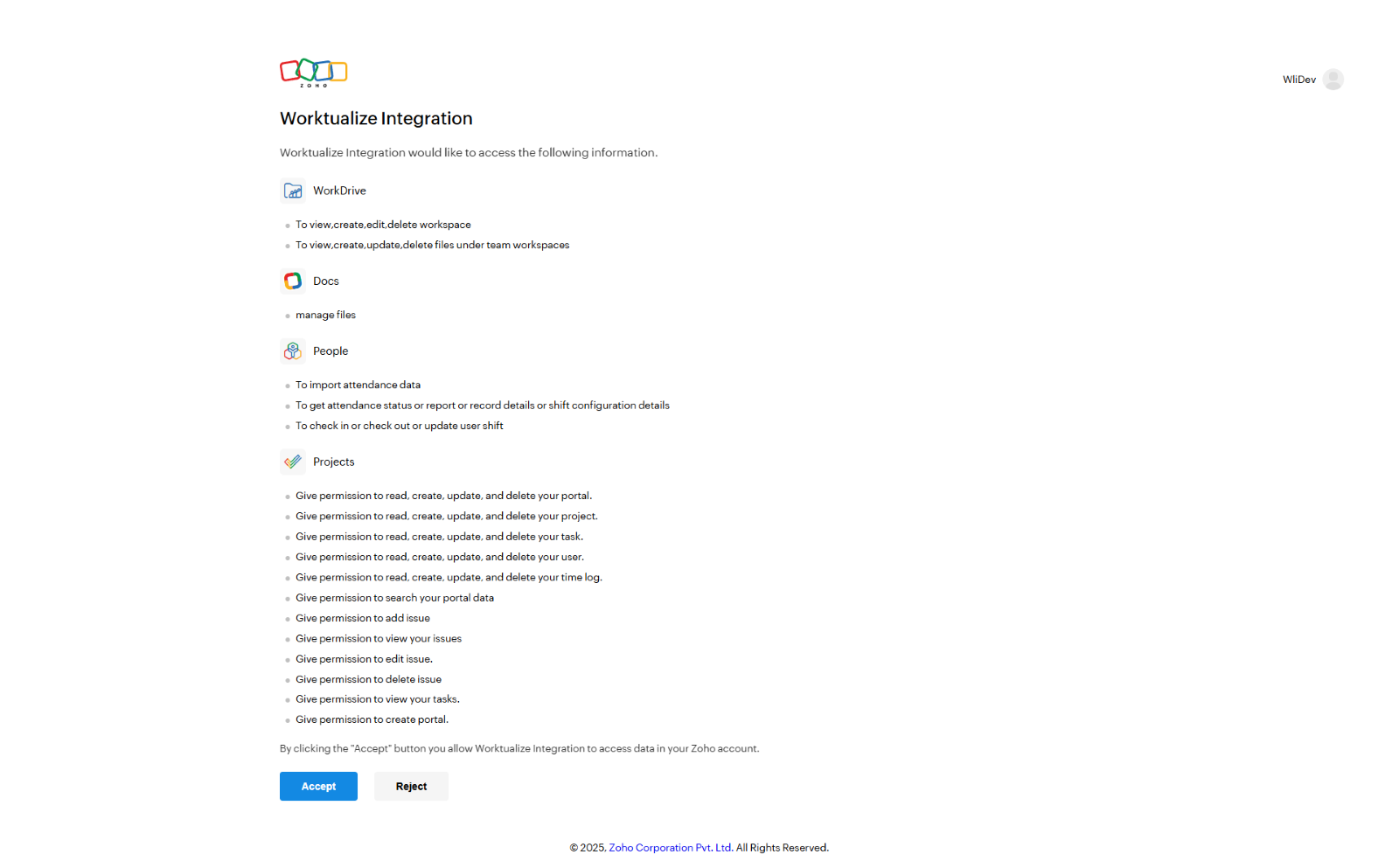
    1. On the next screen, click “Redirect” — this will take you to Zoho’s authentication page.

    2. Review the requested permissions and click “Accept”.


    3. You’ll be redirected back to Worktualize.

    4. Click the “Zoho Auth” button to complete the integration.

    5. Once you finish the above, now you are connected with Zoho Projects and Wortualize to start using Worktualize desktop app and it’s tracking reports over web control panel.